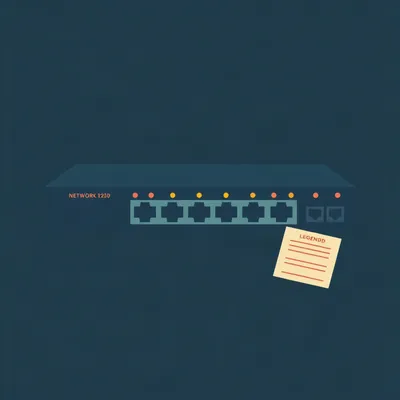
This is the first Herman In Brief. Short answers to questions that don't need half an hour. Daniel sent this one from Jerusalem. You look at the Ethernet port on a router, a switch, the back of your computer, and there are little lights. Green, orange, solid, flashing, sometimes doing nothing at all. Presumably that's diagnostic. What do they actually mean?

And for the record, we did the long version of this back in June. Episode three thousand two hundred twenty-seven, Reading the Blink Codes on Your Network Switch. That one went deep on multi-gig links, fiber, spanning tree. This is the version you can hold in your head while you're crouched behind a desk.
Go.
Most ports give you two pieces of information, and they're usually split across two lights. One is link. The other is activity. Link answers the question, is there a working electrical connection to something on the other end of this cable. Activity answers, is data moving across it right now.
And how do I tell them apart?
By behavior. A solid light means link. The two devices found each other, negotiated a speed, and agreed to talk. A blinking or flickering light means traffic. Every flicker is frames going in or out. Off means no link at all. No cable, a dead cable, the other device is powered down, or the port is disabled.
That's the whole thing?
That's the skeleton. Now the layouts. On a typical computer network card or the jack on a laptop dock, you'll see two small LEDs built into the corners of the socket itself, one on each side. A very common arrangement is one light for link and activity combined, solid when connected, blinking with traffic, and the other light for speed, where the color tells you how fast the link negotiated.
And the one-light version?
Plenty of cheaper switches and routers have a single LED per port, sometimes above the jack rather than in it. That one light does everything. Solid means link, blinking means activity, and if it's a two-color LED, the color is the speed. Some switches put the lights in a row on the front panel with a number for each port, which is handy when the jacks are on the back.
Color. Green and orange. What's the rule?
The usual idea is that color means negotiated speed. The trouble is which way round it goes depends entirely on the vendor. Take Intel's own network card documentation for a lot of their classic gigabit adapters. The speed light is off at ten megabit, green at one hundred megabit, and yellow at gigabit. So on that card, the warm color is the good one. Meanwhile a lot of unmanaged home switches do the opposite. Green means gigabit, amber means the link fell back to ten or one hundred megabit.
That's genuinely unhelpful.
It is. And on multi-gig and ten gigabit gear the scale shifts up again. A two point five gigabit switch might use green for gigabit and amber for two point five or five, which is the example we used in the June episode. Intel's ten gigabit cards use green for ten gig and yellow for one gig. Same two colors, completely different meanings.
Then there's the extra lights. PoE.
If the switch supplies Power over Ethernet, to a camera, a phone, a wireless access point, there's often a separate PoE indicator per port, or a mode where the port lights show power instead of data. Commonly, solid means the switch is delivering power to that port. Blinking or amber on a PoE indicator, on many switches, means a fault. Overload, a short, a device asking for more power than the switch has left in its budget. But again, that's vendor-specific. Check the label.
And SFP ports, the little cages with no RJ forty-five jack.
Those take a plug-in module, fiber or copper. They usually have one LED per cage, on the switch body beside it or in the front panel row. Same basic grammar. Solid for link, blinking for activity, and on a lot of switches a color for speed, say one color for ten gig and another for one gig. Off on a fiber port often just means no light arriving from the far end. Either the fiber's unplugged, the other side is off, or the transmit and receive strands are swapped.
Now the caveat you promised.
Here it is, and it's the most important sentence in this episode. There is no universal standard for Ethernet port LEDs. The IEEE standard that defines Ethernet, eight oh two dot three, specifies the electrical signaling and the protocols. It does not tell anyone what color a light should be or when it should blink.
Then who decides?
Whoever designs the board. The chip that actually drives the cable is called the PHY, the physical layer transceiver. PHY chips have a handful of LED output pins, and those pins are programmable. The designer picks which pin means link, which means activity, which means a particular speed, and then wires them to whatever LEDs are in the jack they bought. Two products using the identical chip can light up completely differently. That's why the only authority is the manual, or very often the little legend printed right on the switch's case, next to the lights. Look there first. It's usually two lines of tiny text and it answers the whole question.
Fine. When does the light actually tell me something's wrong?
Four cases are worth knowing. First, the speed color says slow when you expected fast. You've got a gigabit switch and a gigabit laptop, and the light says one hundred megabit. That's the most useful thing these lights ever tell you. Gigabit over copper uses all four pairs of wires in the cable. One hundred megabit only needs two of them. So if one pair is broken, badly crimped, or the cable is an old one with only two pairs actually wired, the two ends can't do gigabit, and many network chips will quietly drop to one hundred megabit rather than fail. Everything works. It's just a tenth of the speed. Old Cat five cable, a cheap flat patch lead, a wall jack somebody punched down wrong. Those are the usual suspects.
And the fix is a new cable.
Swap the cable first, before you touch anything else. It's the cheapest test there is. If the light changes color, you're done. Second case: the light never comes on at all. Check the obvious. Is the other end powered, is the cable seated with a click, try a different port on the switch, try a known good cable. If a different cable lights it up, the old cable is bad. If no cable lights that one port, the port may be dead or disabled in the switch's settings.
Third.
A steady, fast flicker on a machine that's supposedly doing nothing. Usually that's not a fault. Computers are chatty. Updates, cloud sync, backups, and a constant background of small broadcast messages where devices announce themselves to each other. But if every port on the switch is flickering hard and in sync, and the network has slowed to a crawl, that can be a loop. Someone plugged both ends of a cable into the same switch, or two switches are connected twice, and broadcast traffic is circling forever. The lights go frantic across the board. Unplug the most recent cable you added and see if it stops.
And the fourth is amber where amber means trouble.
On some switches, amber, or blinking amber, on a data port isn't about speed at all. Cisco's Catalyst switches are the classic example. In the default port status mode, solid amber means spanning tree has blocked that port to prevent a loop. It can sit amber for up to about thirty seconds after something's plugged in while the switch checks, and that's normal. If it stays amber, you've likely got a redundant connection somewhere. Alternating green and amber on those switches means a link fault, errors on the wire. Other vendors use amber or a fast blink for loop detection or port errors. Different brand, different meaning. Back to the legend.
One thing from the long episode. A slow pulse on an idle port.
Yes, we mentioned that in June. On some gear, a port in Energy Efficient Ethernet idle can blink slowly. Generate a little traffic and if it snaps to normal activity, it was never a problem.
Give me the checklist.
Five steps. One, read the legend on the device, or look up the manual for that exact model. Two, check for a link light at both ends of the cable. No light means power, cable, or port, in that order. Three, check the speed color against what you expected. Slower than expected means suspect the cable first, then the jack. Four, look at activity. Flickering with a mostly idle machine is normal. Every port going frantic at once means look for a loop. Five, anything amber or blinking oddly that isn't explained by speed, check the manual before you replace hardware. And if your operating system or the switch has a status page, it'll tell you the negotiated speed in plain words, which settles any argument with the lights.
Takeaway?
Solid is link, blinking is traffic, color is usually speed, and the label on the box beats every rule I just gave you.
The lights are a language. Every manufacturer just speaks its own dialect. This has been Herman In Brief, from My Weird Prompts, find us at myweirdprompts dot com.